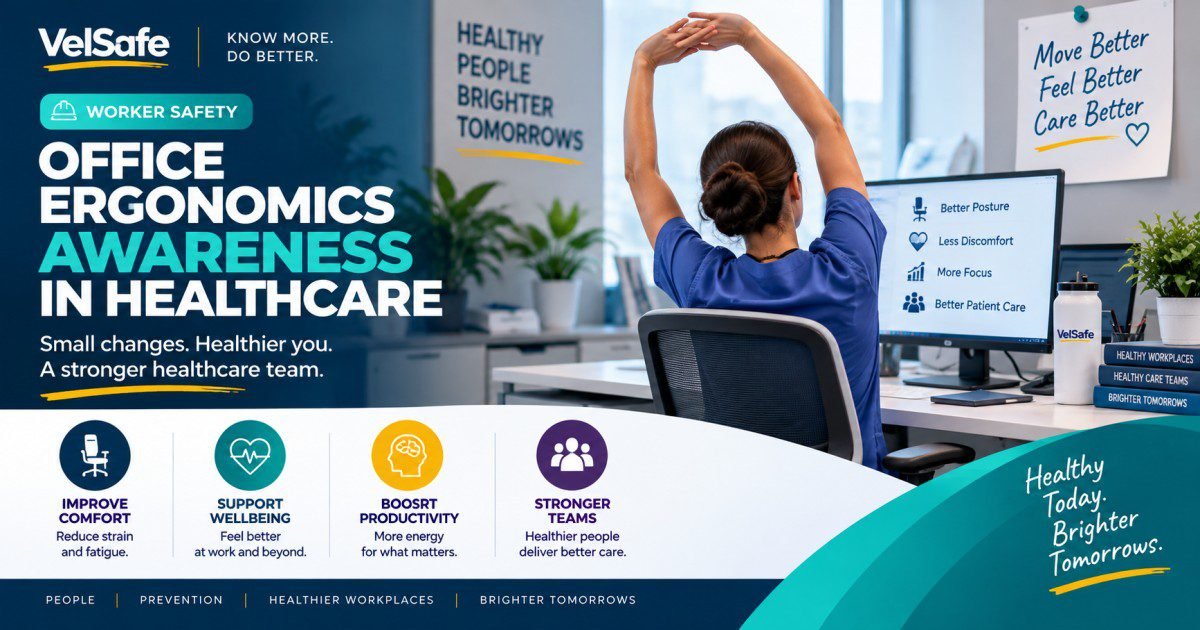
Worker Safety: Healthcare Office Ergonomics
Office Ergonomics for Healthcare Workers: Set Up Your Workstation and Protect Your Body
Office ergonomics awareness helps healthcare workers who spend hours at a desk avoid the pain and injury that come from poor posture and badly set up workstations. Poor ergonomics causes musculoskeletal disorders (MSDs) that can keep you off work and lead to long-term injury. This article covers how to recognise the warning signs, how to set up your workstation correctly, and what your employer must provide under OSHA guidelines.
33%
Of All Workplace Injuries Are Musculoskeletal Disorders
The Bureau of Labor Statistics reports that musculoskeletal disorders account for about one-third of all occupational injuries and illnesses requiring days away from work each year. Poor ergonomics at desk-based roles is a primary contributor. Source: BLS Occupational Injury and Illness Data
$20B+
Annual Cost of Work-Related MSDs in the United States
OSHA estimates that work-related musculoskeletal disorders cost US employers more than $20 billion annually in direct costs alone, including medical treatment, workers’ compensation, and lost productivity. Healthcare sector workers are among the most affected. Source: OSHA: Ergonomics
90°
The Key Angle: Elbows, Hips, and Knees Should Each Be at 90 Degrees
OSHA’s computer workstation ergonomics guidelines identify the 90-degree rule as the foundation of a neutral seated posture. When elbows, hips, and knees are each at approximately 90 degrees, strain on muscles, tendons, and nerves is minimised. Source: OSHA: Computer Workstations eTool
Healthcare workers at desk-based roles face a specific ergonomics risk. Many spend long periods entering patient data, reviewing records, or processing documentation. This is often done in a rush, at shared workstations that have not been adjusted, or on laptops that are not designed for extended use. The result is sustained awkward posture that puts stress on the neck, shoulders, upper back, wrists, and lower back.
Neck and Shoulder Pain
Caused by screens that are too low, too high, or off to one side. Workers hold their head in a fixed position for long periods, which tires the neck muscles and strains the joints.
Wrist and Hand Problems
Carpal tunnel syndrome and tendinitis are common when the keyboard and mouse are positioned too high, too far away, or when the wrists are bent during typing. These conditions worsen without intervention.
Lower Back Pain
Sitting in a chair that does not support the lower back (lumbar region) causes the spine to curve in the wrong direction. Over hours and days, this leads to muscle fatigue and disc stress.
Eye Strain and Headaches
Screens that are too bright, too dim, too close, or positioned at the wrong angle cause the eyes to work harder than they should. This leads to headaches, blurred vision, and dry eyes by the end of a shift.
Report any of these symptoms to your supervisor
Pain, aching, or burning in your neck, shoulders, arms, or wrists during or after work
Tingling or numbness in your hands or fingers that does not go away after a rest break
Stiffness or reduced grip strength in your hands
Headaches or eye strain that appears regularly at the end of your shift
Lower back pain that gets worse after sitting for long periods
Swelling or tenderness in any joint you use for work tasks
Do not wait until the pain is severe. Early symptoms that are reported and addressed early almost always resolve. Symptoms that are ignored for weeks or months often develop into injuries that require months of treatment or surgery.
Follow these steps every time you sit down at a desk for a work session. The whole process takes about two minutes. It makes a significant difference over the course of a shift.
Conduct workstation assessments for every new staff member
When someone starts a desk-based role, walk them through their workstation setup before their first full shift. Most MSD problems in office settings start in the first weeks, when workers accept a badly set up workstation as normal. A 10-minute assessment at the start prevents months of treatment later.
Respond to ergonomics complaints within 24 hours
When a worker reports discomfort or pain, act the same day. Assess the workstation, make adjustments, and document what was done. Workers who report early symptoms and get no response stop reporting. By the time the problem is visible, it is often a compensable injury. Early reporting, followed by early action, is your most effective injury prevention tool.
Provide ergonomics equipment when a hazard is identified
If a workstation assessment shows that a worker needs a footrest, wrist rest, monitor stand, or ergonomic chair, provide it. OSHA’s General Duty Clause requires employers to provide a workplace free from recognised hazards. A documented MSD hazard that is not corrected is a General Duty Clause violation if a worker is subsequently injured.
Enforce micro-break policy and lead by example
Micro-break policies only work when supervisors follow them too. If the team sees the supervisor sitting at their desk for four hours without moving, they will do the same regardless of what the policy says. Schedule team movement breaks into the day, particularly during high-documentation periods, and make them visible. A visible break culture reduces MSD risk across the whole team.
Before Your Shift
During Your Shift
End of Shift
Adjust chair height so feet are flat
Set lumbar support to fit lower back
Position keyboard at elbow height
Set monitor at arm’s length and eye level
Reduce glare from windows and lights
Adjust screen brightness to match room
Take a movement break every 30-45 min
Keep wrists straight while typing
Sit back in chair with back supported
Keep mouse close beside keyboard
Blink regularly to reduce eye strain
Report any pain or discomfort promptly
Note any persistent pain for reporting
Do 3-5 minutes of desk stretches
Log any ergonomics concern with supervisor
Return chair to neutral if workstation is shared
Note equipment issues for maintenance
Follow up on any reports made earlier
Two minutes of setup prevents months of pain
Adjusting your chair, keyboard, and screen before each shift takes about two minutes. That two minutes of setup dramatically reduces the risk of neck pain, back pain, wrist injury, and eye strain over a full shift. Do not skip it, even on busy days.
Early symptoms reported early are almost always fixable
Pain that is reported in its early stages is almost always resolved with a workstation adjustment and rest. Pain that is ignored for weeks or months often becomes a diagnosed musculoskeletal disorder requiring months of treatment. Report discomfort on the day you feel it, not the week it becomes unbearable.
Your employer must act on ergonomics hazards: know your rights
OSHA’s General Duty Clause requires your employer to address recognised hazards that are causing or likely to cause serious harm. A known ergonomics problem at a workstation that is left uncorrected after a report is a violation of this obligation. If you report a problem and it is not addressed, you can contact OSHA to file a complaint. You cannot be disciplined for filing an OSHA complaint in good faith. Source: OSHA: File a Complaint
What does office ergonomics awareness mean for healthcare workers?
Office ergonomics awareness means understanding how the way you sit, position your equipment, and organise your desk affects your body over time. For healthcare workers who spend hours entering patient records, reviewing documentation, or taking calls, ergonomics awareness is the knowledge that allows you to set up your workstation safely, recognise early warning signs of injury, and take action before pain becomes a long-term problem. Source: OSHA: Computer Workstations eTool
Is my employer required to provide an ergonomic chair or workstation?
OSHA has no specific ergonomics standard for general industry office workers, but the General Duty Clause (Section 5(a)(1) of the OSH Act) requires employers to provide a workplace free from recognised hazards likely to cause death or serious physical harm. If a workstation poses a recognised ergonomics hazard and your employer is aware of it, they have an obligation to address it. Employers who receive a report of ergonomics-related discomfort and do nothing face potential General Duty Clause liability if the worker is later injured. Source: OSHA: Ergonomics
How do I know if my workstation is set up correctly?
A correctly set up workstation passes four basic checks. First, your feet are flat on the floor and your knees are at about 90 degrees. Second, your keyboard and mouse are at elbow height with your wrists straight. Third, the top of your monitor is at or just below eye level and about an arm’s length away. Fourth, there is no glare on your screen from windows or overhead lights. If any of these four are wrong, adjust them before starting work.
Can I be injured from sitting at a desk even if the work is not physical?
Yes. Desk work is a significant cause of musculoskeletal disorders. Holding the same posture for extended periods, even a comfortable-feeling one, causes muscle fatigue, circulation reduction, and joint stress. Repetitive movements like typing and mouse use cause tendon strain over time. The Bureau of Labor Statistics consistently identifies office-based workers among those with high rates of MSDs requiring days away from work. Source: BLS: Occupational Injuries and Illnesses
What is a musculoskeletal disorder and how does ergonomics prevent it?
A musculoskeletal disorder (MSD) is an injury to the muscles, tendons, ligaments, nerves, or joints. Common examples are carpal tunnel syndrome, tendinitis, back strain, and neck pain. MSDs caused by work are called work-related MSDs (WMSDs). Ergonomics prevents them by reducing the physical stress placed on the body during work tasks. A workstation set up to support neutral posture reduces the strain on muscles and tendons that, over time, would cause an MSD.
How often should I take breaks from sitting at my desk?
OSHA’s computer workstation guidance recommends taking short breaks from a fixed posture every 30 to 45 minutes. These do not need to be long. Standing up, walking to get water, or doing a brief set of shoulder rolls for two minutes is enough to break the cycle of sustained static posture. During these breaks, look away from the screen to a distant point to rest your eyes. Research supports more frequent short breaks over fewer longer ones for reducing MSD risk in desk workers. Source: OSHA: Computer Workstations Work Practices
What should I do if I share a workstation with other staff?
Shared workstations are common in healthcare settings. Every time you sit down at a shared workstation, spend two minutes adjusting it for your body before you start working. Do not assume the previous user left it set up correctly for you. Adjust the chair height, check the monitor position, and move the keyboard and mouse to the right distance. When you leave, return the station to a neutral setting. Consider keeping a personal note of your preferred settings so adjustments take less time each shift.
Guides
HCIR Credentialing and National Patient Safety Goals Guide
Covers the credentialing and compliance requirements for healthcare industry professionals working in clinical facility environments, complementing ergonomics awareness for the healthcare office setting.
Worker Safety
Methylene Chloride Safety: What Every Worker Needs to Know
Chemical hazard controls and OSHA rights for workers handling methylene chloride, demonstrating the same early symptom reporting approach that applies to ergonomics-related discomfort.
Tips
7 Medical Device Trial Investigator Obligations Tips
Actionable compliance tips for clinical investigators in medical device trials, relevant to healthcare professionals who combine desk-based documentation work with clinical responsibilities.
Healthcare Worker Safety Resources
More Worker Safety Guides for Healthcare Professionals
VelSafe’s Worker Safety library covers practical, plain-language safety guidance for frontline workers and supervisors across healthcare, general industry, and construction. Find the guidance your team needs before the next shift.
Explore All Worker Safety